

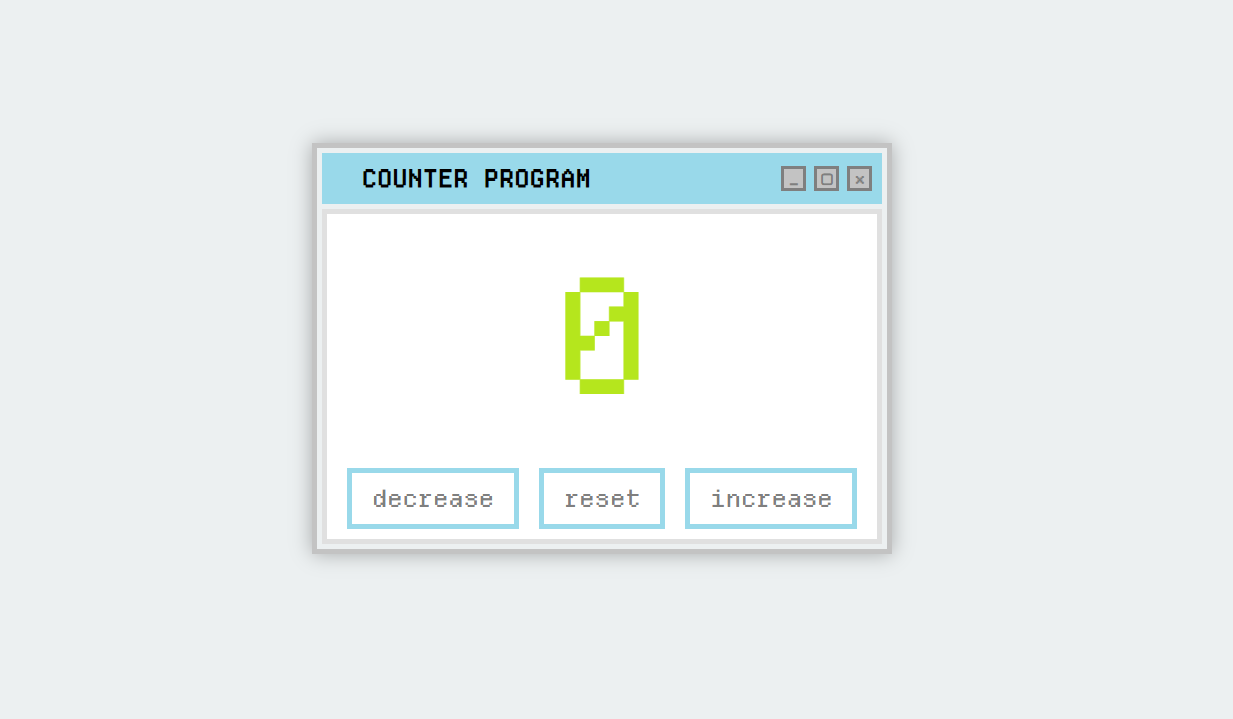
귀여운 숫자 세기 프로그램을 만들었다! 아래는 개발 순서이다.
1. html로 숫자(countLabel), 버튼 3개(decreaseBtn, resetBtn, increaseBtn) 만들기
2. css로 위치 수정하기 (버튼은 아래로 나열, 숫자는 가운데 위로)
3. javascript로 기능 구현
이렇게만 했는데 조금 아쉬워서, 색깔과 폰트, 일부 기능을 추가했다.
1. 색깔을 수정하기 위해 여러개의 div를 추가하여 구역을 분할해 색깔과 padding, margin을 다듬었다.
2. 무료 저작권 폰트 사이트 '눈누'를 사용하여 픽셀 느낌의 폰트를 추가해주었다.
3. javascript를 통해 'increase'버튼을 누르면 숫자가 살짝 튀어오르고, 반대로 'decrease' 버튼을 누르면 숫자가 살짝 내려가는 기능을 추가했다.
아래는 해당 프로그램을 짜면서 헷갈렸던 & 어려웠던 부분을 따로 정리한 코드이다.
container를 화면 가로세로 정중앙에 배치하기
body {
  margin: 0;
  height: 100vh; /* 전체 화면 높이 */
  display: flex;
  justify-content: center; /* 가로 중앙 */
  align-items: center;     /* 세로 중앙 */
}

.container {
  display: flex;
  flex-direction: column;  /* 세로 방향 정렬 */
  align-items: center;     /* 내부 요소들을 가운데 정렬 */
}

#countLabel {
  font-size: 3rem;
  margin-bottom: 20px; /* 숫자와 버튼 사이 간격 */
}
버튼의 경계(border) 색깔과 두께 바꾸기
button {
  border: 2px solid red;  /* 두께 2px, 실선(solid), 빨간색 */
}
아이콘 묶음을 오른쪽 끝에 보내기
icon에 margin-left: auto(또는 .header에 justify-content: space-between) 부여하기
/* header */
.header {
  display: flex;
  align-items: center;
  padding: 10px;
  margin: 10px;
  background-color: #99d9ea;
  /* 또는: justify-content: space-between;  (아래 margin-left:auto 대신) */
}

.projectName { /* 제목 영역 */ }

.icon {
  margin-left: auto;      /* 아이콘 묶음을 오른쪽 끝으로 밀기 */
  display: flex;
  gap: 8px;
  align-items: center;
}
text 두껍게 하기
갑자기 기억이 안나서.. 서치했다🥲
.text {
  font-weight: bold;   /* 기본 굵게 */
}

.text {
  font-weight: bolder; /* 부모보다 더 두껍게 */
}

.text{
  font-weight: 700;    /* 숫자로도 지정 가능 (100 ~ 900) */
}
버튼 눌렀을 때 색 바뀌는 효과 넣기
버튼에 마우스 올리는 건 :hover, 누르는 건 :active
.buttons:active {
    background-color: #e3dff2;
    border-color: #e3dff2;
    transform: translateY(2px); /* 아래로 눌린 느낌 */
}
transform: translateY(2px)는 처음 알게 되었는데 참 예쁘다!😚
border과 배경색 모두 같이 바뀌게 하기
버튼을 눌렀을 때 배경색이랑 경계색 모두 바뀌게 하고 싶은데, 시간차가 주어지면서 바뀌어서 어색했다.
아래는 수정한 코드이다.
.buttons {
  padding: 10px 20px;
  font-size: 1.5em;
  color: #7f7f7f;
  border: 5px solid #99d9ea;
  background-color: white;
  cursor: pointer;

  /* transition을 한 번에 묶어서 정의 */
  transition: all 0.3s ease;
  /* 또는 transition: background-color 0.3s ease, border-color 0.3s ease; */
}
숫자 바뀔 때 눌리는 효과 주기
버튼 누를 때 눌리는 효과가 예뻐서 숫자가 바뀔 때도 동일한 효과가 있으면 좋겠다고 생각했다. increase를 누를 때와 decrease를 누를 때 다르게 하고 싶다보니, css와 javascript 두개 모두 활용해야 했다.
CSS 코드 :
#countLabel { display:inline-block; will-change: transform; }

#countLabel.bump-up   { animation: up 140ms ease; }
#countLabel.bump-down { animation: down 140ms ease; }

@keyframes up   { 0%{transform:translateY(0)} 50%{transform:translateY(-2px)} 100%{transform:translateY(0)} }
@keyframes down { 0%{transform:translateY(0)} 50%{transform:translateY( 2px)} 100%{transform:translateY(0)} }
JavaScript 코드 :
function bumpDir(dir) {
    const el = document.getElementById('countLabel');
    el.classList.remove('bump-up', 'bump-down');
    void el.offsetWidth;
    el.classList.add(dir === 'up' ? 'bump-up' : 'bump-down');
}

increaseBtn.onclick = function(){
    count++;
    countLabel.textContent = count;
    bumpDir('up');
}
decreaseBtn.onclick = function(){
    count--;
    countLabel.textContent = count;
    bumpDir('down');
}
이렇게 예쁜 counter program이 완성되었다!
아래는 최종 완성된 깃허브 코드이다.
https://github.com/Andante-Kim/javascript-log/tree/main/counter-program
javascript-log/counter-program at main · Andante-Kim/javascript-log
My JavaScript Learning Journey. Contribute to Andante-Kim/javascript-log development by creating an account on GitHub.
github.com